AWS Cloud Practitioner 02: IAM and Identity
For every action in AWS, the first thing to settle is who is asking and whether they are allowed to do it. AWS Identity and Access Management (IAM) handles that check. In the first part we saw that in the Shared Responsibility Model, access permissions always stay with the customer, no matter how far up the service is abstracted. IAM is the tool we use to fulfill that duty. The topic carries a lot of weight in the certification, because according to the Exam Guide the Security and Compliance domain makes up 30 % of the scored content.
Users, groups and policies
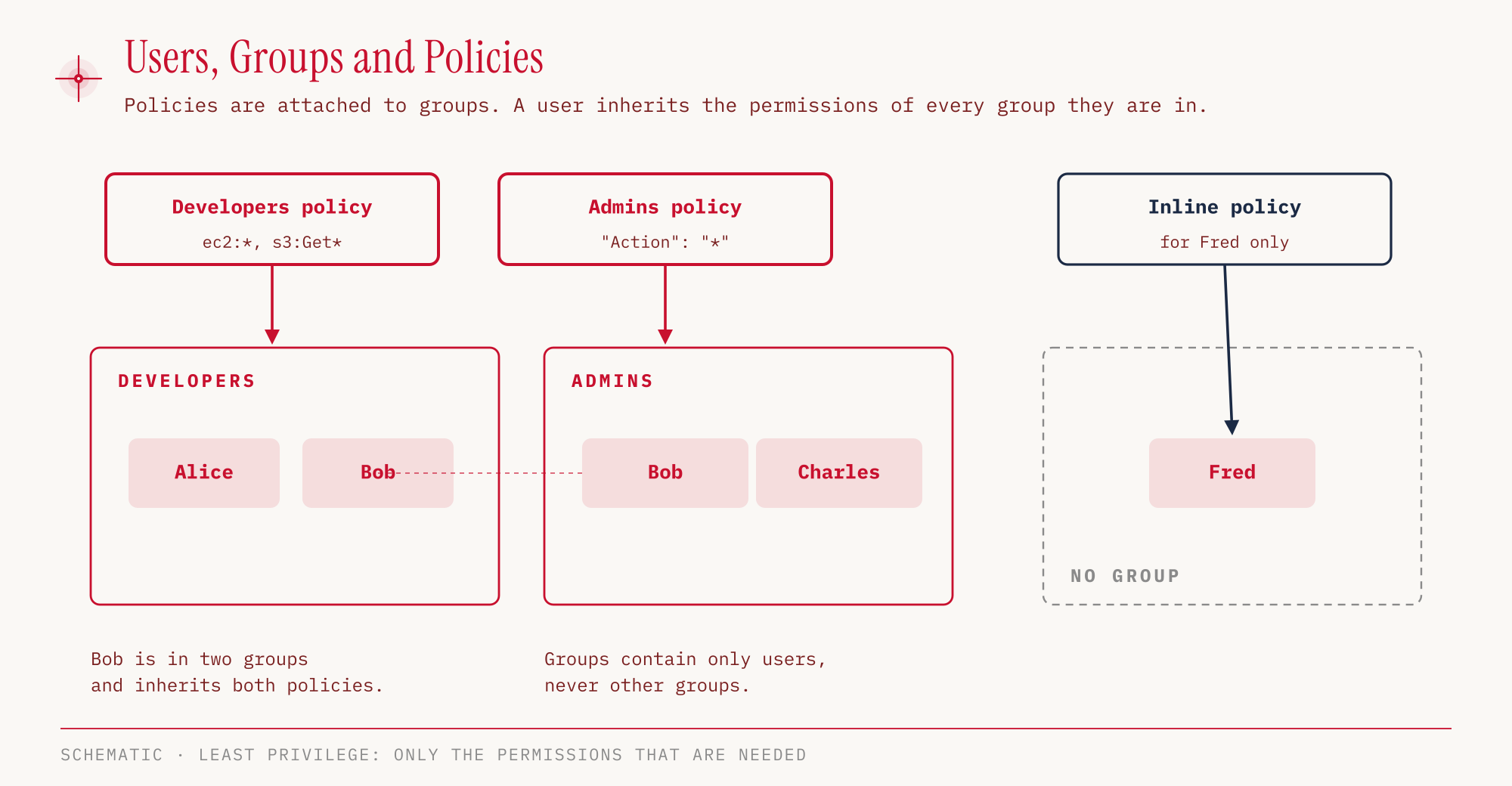
Let’s start with the building blocks. An IAM user stands for a person or an application that accesses the account permanently. A group bundles users so that we don’t have to assign permissions to each one individually. The permissions themselves live in policies, which are documents that describe which actions are allowed on which resources.
Groups contain only users and cannot be nested. A user, on the other hand, can be in several groups or in none at all.
A policy that is embedded in exactly one identity, meaning a user, a group or a role, is called an inline policy. It disappears together with that identity. The counterpart is managed policies, which are standalone objects that can be attached to any number of identities, such as the policies maintained by AWS like AmazonS3ReadOnlyAccess.
A policy consists of a few elements:
| Element | Meaning | Required |
|---|---|---|
| Effect | allow (Allow) or deny (Deny) | yes |
| Action | which API actions, such as s3:GetObject | yes |
| Resource | which resources the action applies to | yes |
| Principal | who the rule applies to | only in resource-based policies, required there |
| Condition | under which conditions it applies | optional |
Behind it all stands the principle of least privilege. Each identity gets only the permissions it needs for its task. Whatever no policy allows is denied. In the hands-on below we will see this in black and white as implicitDeny.
There are two ways to get access. In the Management Console, users sign in with a password and MFA. The CLI and the SDKs work with access keys, a key pair made of an access key ID and a secret access key. The pair acts like a permanent password for programs. That is why access keys are delicate. Whoever copies them has the permissions of the user.
For the passwords of IAM users, we set an IAM password policy. It sets the minimum length and character types, lets passwords expire after a set period, prevents the reuse of old passwords, and controls whether users may change their own password. Without a custom policy, the AWS default applies, with 8 to 128 characters from at least three of the four character classes uppercase letters, lowercase letters, numbers and symbols (IAM User Guide). The password policy applies neither to the root user’s password nor to access keys. It cannot lock a user out after a number of failed sign-in attempts.
Roles instead of keys on the machine
This is where IAM roles come in. A role is an identity with policies that doesn’t belong to any particular person. Whoever assumes the role gets its permissions for a limited time. Typical users are AWS services themselves, such as an EC2 instance, a Lambda function or CloudFormation. That way the instance needs no access key sitting on its disk, to end up in a backup or repository at some point.
The credentials for an assumed role come from the AWS Security Token Service (STS). STS issues temporary, limited credentials. Besides EC2 roles, federation (signing in through an external identity provider) and cross-account roles use this path as well. With cross-account roles, an identity from one account assumes a role in another account. In Task 2.3 the Exam Guide lists federated identities and cross-account roles as authentication methods.
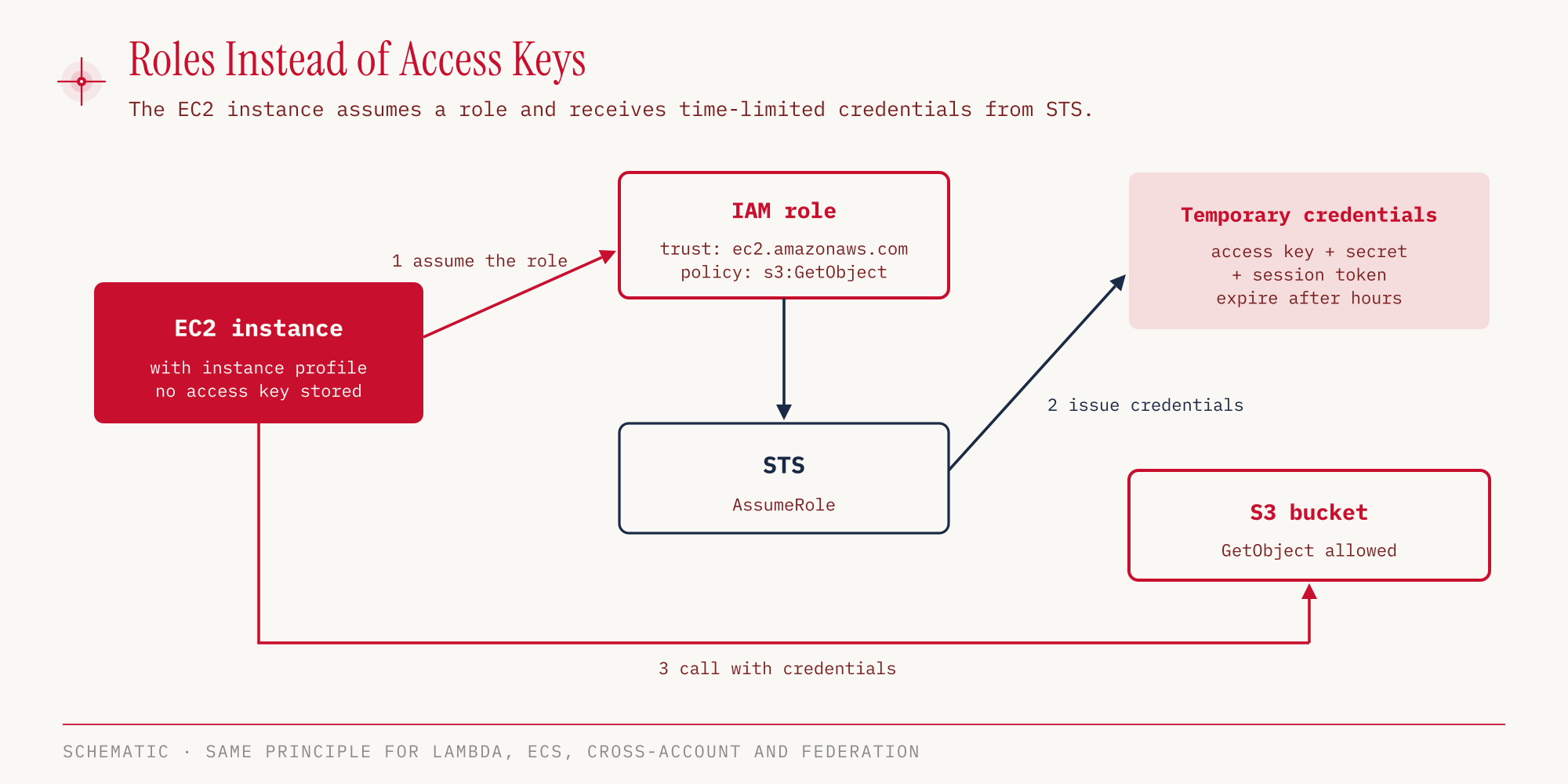
A user is a permanent identity with its own credentials, while a role is an identity to be assumed, whose credentials expire. If an exam question has one AWS service accessing another, the answer is almost always a role.
That leaves the question of where applications keep the passwords and keys they still need, for a database for example. Task 2.3 names AWS Secrets Manager and AWS Systems Manager, where the Parameter Store takes on this job. We will look at both more closely in later parts.
The root user and MFA
When an AWS account is created, the root user comes into being. It has unrestricted access to everything in the account. That is why we use the root user only to set up the account. We never share its credentials, we don’t create access keys for root, and we delete existing ones. For daily work we create IAM identities with suitable permissions.
Some tasks can only be done by the root user. The current IAM documentation lists these, among others:
| Root user only |
|---|
| change the email address, root password and root access keys (for accounts outside AWS Organizations) |
| close the account (outside Organizations) and reopen it |
| restore IAM permissions |
| activate IAM access to the Billing console |
| register as a seller in the Reserved Instance Marketplace |
| configure MFA Delete for S3 |
| edit or delete an S3 bucket policy that locks out all principals (the same applies to SQS policies) |
| register for AWS GovCloud (US) |
Other account settings such as support plan, account name, contact details or enabled Regions don’t need root according to the documentation.
For accounts in AWS Organizations there is now centralized root access management. It lets us remove the root credentials of member accounts and run some privileged tasks centrally. Authorized IAM users or roles in the management account can also close member accounts without root and change their root email address, contact details and Regions.
Multi-factor authentication (MFA) adds a second factor to the password. IAM currently supports three types:
| MFA type | Example |
|---|---|
| Passkey or FIDO security key | YubiKey |
| Virtual MFA device | authenticator app on the smartphone |
| Hardware TOTP token | key fob that shows one-time codes |
SMS as a second factor is no longer supported. The root user and IAM users can each register up to eight MFA devices. For the root user, AWS now enforces MFA for all account types.
Access reports for the overview
Granting permissions is the easy part. It is harder to know later who may do what and which of it is still needed. IAM comes with three tools for this, which have similar names and are often mixed up in the exam. The Exam Guide groups them as “access reports” in Task 2.2.
| Tool | Level | Shows |
|---|---|---|
| IAM Credentials Report | account | all users and the status of their credentials |
| IAM Access Advisor | single user | which services they have used and when last |
| IAM Access Analyzer | resources | resources that are shared outside your own zone of trust |
The memory aid lies in the level. The credentials report looks at the whole account and answers audit questions about passwords and keys. Access Advisor looks at one user and shows which services they actually use. That helps with least privilege, because permissions for services that are never used stand out. Access Analyzer looks at the resources and finds what is shared beyond the zone of trust, meaning with principals outside your own area of trust.
Identities outside IAM
IAM users are meant for people and programs that work in AWS. For other cases there are separate services whose names are easy to mix up.
| Service | Purpose | Typical question |
|---|---|---|
| AWS STS | temporary, limited credentials | federation, cross-account access, permissions for EC2 |
| Amazon Cognito | user database for web and mobile apps, with social login | end customers of an app should sign in |
| AWS Directory Service | Microsoft Active Directory in AWS | an existing AD should work with AWS |
| AWS IAM Identity Center | one login for all accounts of an organization and for SAML apps | employees need access to many accounts |
Amazon Cognito is for the customers of an application, not for your own employees. Anyone who runs an app with thousands of end customers doesn’t create IAM users for them. Cognito manages these users and allows sign-in through social login.
AWS Directory Service brings Active Directory to AWS, in three variants:
| Variant | Principle |
|---|---|
| AWS Managed Microsoft AD | a real Microsoft AD in AWS, with a trust to the on-premises AD |
| AD Connector | a proxy that forwards requests to the on-premises AD |
| Simple AD | a standalone, AD-compatible directory with no connection |
AWS IAM Identity Center is the successor to AWS Single Sign-On. It gives employees a single login for all accounts in AWS Organizations and for business applications that speak SAML. The identities come from an identity source, which is either the built-in Identity Center directory, an Active Directory or an external identity provider such as Okta or Microsoft Entra ID. The Exam Guide names Identity Center explicitly in Task 2.3. As soon as a question mentions several accounts and a shared login, this is the answer.
Hands-on
In the demo account, let’s create a group with read permissions for S3, put a user in it and check what the user may do. IAM is a global service. We set the parameter --region eu-central-1 only so that all commands in the series look the same, it doesn’t change the result.
First the group with the AWS-managed policy AmazonS3ReadOnlyAccess, then the user:
aws iam create-group --group-name ccp-demo-readers --region eu-central-1

aws iam attach-group-policy \
  --group-name ccp-demo-readers \
  --policy-arn arn:aws:iam::aws:policy/AmazonS3ReadOnlyAccess \
  --region eu-central-1

aws iam create-user --user-name ccp-demo-user --region eu-central-1

aws iam add-user-to-group \
  --group-name ccp-demo-readers \
  --user-name ccp-demo-user \
  --region eu-central-1
In the console: IAM → IAM user groups → Create group, enter the User group name, search for AmazonS3ReadOnlyAccess under “Attach permissions policies”, check it and click Create user group. We create the user with IAM → IAM users → Create user without console access and check the group under “Add user to group”.
The user has no policy of its own. It inherits its permissions entirely from the group. Whether that works, we check with the policy simulator, without running a single real action. We look up the user’s ARN first, because it contains our own account ID:
USER_ARN=$(aws iam get-user --user-name ccp-demo-user \
  --query User.Arn --output text)

aws iam simulate-principal-policy \
  --policy-source-arn "$USER_ARN" \
  --action-names s3:ListAllMyBuckets s3:GetObject s3:PutObject s3:DeleteBucket ec2:RunInstances \
  --query 'EvaluationResults[].[EvalActionName,EvalDecision]' \
  --output text \
  --region eu-central-1
s3:ListAllMyBuckets   allowed
s3:GetObject          allowed
s3:PutObject          implicitDeny
s3:DeleteBucket       implicitDeny
ec2:RunInstances      implicitDeny
In the console: IAM → Access reports → Policy simulator → Add identity → Add actions → Simulate, picking the actions per service via “Specify”. The EC2 row has to be expanded, because the console evaluates RunInstances per resource type.
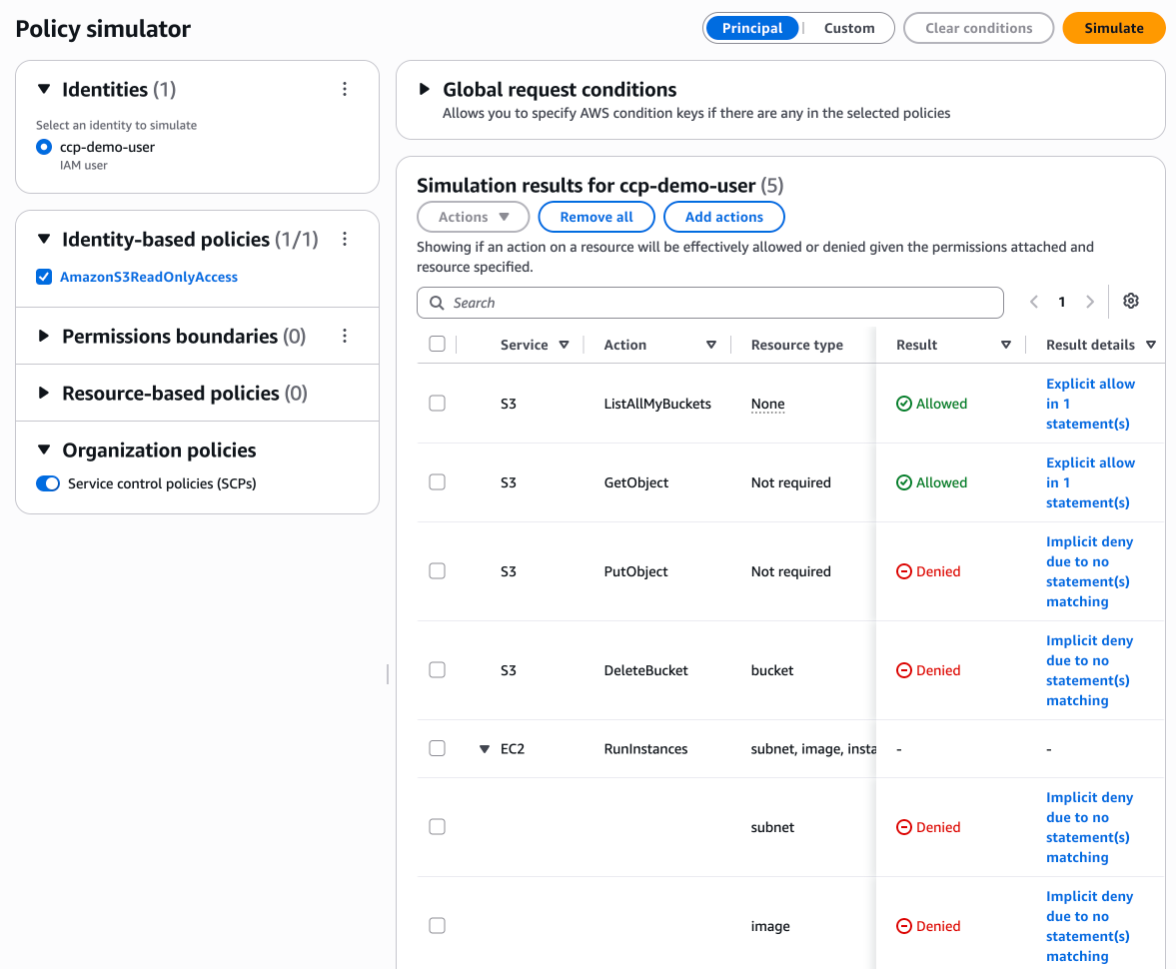
The policy allows reading and listing. Writing and deleting don’t appear in it, so IAM denies them. Starting an EC2 instance is denied all the more, since the policy covers only S3. Nobody wrote a deny here. implicitDeny means that there is simply no permission. In IAM, least privilege is the normal state.
We clean up in reverse order. First we remove the user from the group and delete the user, then we detach the policy from the group and delete the group.
aws iam remove-user-from-group \
  --group-name ccp-demo-readers \
  --user-name ccp-demo-user \
  --region eu-central-1

aws iam delete-user --user-name ccp-demo-user --region eu-central-1

aws iam detach-group-policy \
  --group-name ccp-demo-readers \
  --policy-arn arn:aws:iam::aws:policy/AmazonS3ReadOnlyAccess \
  --region eu-central-1

aws iam delete-group --group-name ccp-demo-readers --region eu-central-1
Finally, a look at the account’s key figures:
aws iam get-account-summary --region eu-central-1
{
    "SummaryMap": {
        "Users": 1,
        "Groups": 2,
        "Roles": 11,
        "AccountMFAEnabled": 1,
        "AccountAccessKeysPresent": 0
    }
}
The output is shortened. The last two values refer to the root user. AccountMFAEnabled at 1 means that root has MFA enabled, and AccountAccessKeysPresent at 0 means that no access keys exist for root. This is how an account should look.
In the console: IAM → Dashboard, the panels “Security recommendations” and “IAM resources”.
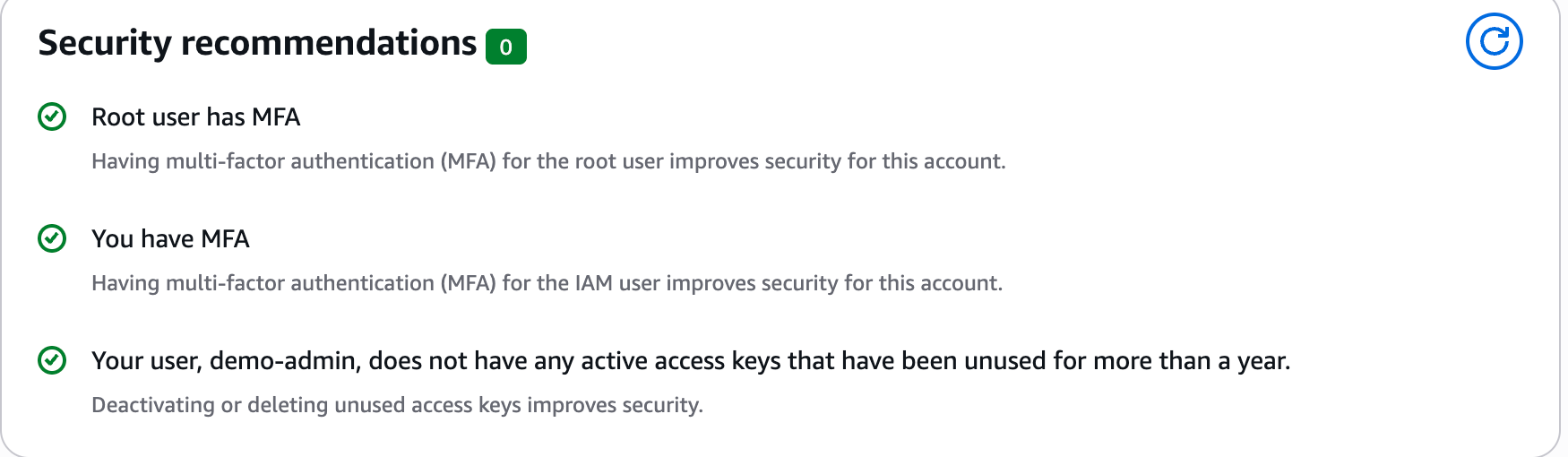
IAM itself costs nothing. A forgotten IAM user mainly costs security, which is why we clean up completely here too.
For the exam
| Keyword in the question | Answer |
|---|---|
| AWS service needs access to another service | IAM role |
| temporary credentials, federation, cross-account | AWS STS |
| all users and their credential status | IAM Credentials Report |
| find unused permissions of a user | IAM Access Advisor |
| resources shared with external accounts | IAM Access Analyzer |
| login for end customers of a web or mobile app, social login | Amazon Cognito |
| connect an existing Active Directory to AWS | AWS Directory Service |
| one login for many accounts of an organization | AWS IAM Identity Center |
| store an application’s database password securely | AWS Secrets Manager or Systems Manager Parameter Store |
| grant permissions as narrowly as possible | Least privilege |
| enforce password complexity and expiration for IAM users | IAM password policy |
| programmatic access through the CLI or an SDK | Access keys (access key ID and secret access key), preferably temporary credentials through a role |
| who rotates access keys and enables MFA for IAM users | the customer |
Typical traps:
- Groups in groups. Groups contain only users. An answer that nests groups is wrong.
- Support plan as a root task. No longer in the list in the IAM documentation. Closing the account, MFA Delete for S3 and restoring locked-out IAM permissions are still listed there.
- SMS as MFA. No longer supported. Valid are passkeys or FIDO keys, authenticator apps and hardware TOTP tokens.
- Cognito versus Identity Center. Cognito is for the customers of an app, Identity Center for your own employees across several accounts.
- Access Advisor versus Access Analyzer. Advisor looks at one user and the services they use, Analyzer at resources that are shared with the outside.
- One IAM user for the whole team. Every person gets their own identity, and credentials are never shared. An answer in which several people share one user is wrong.
- Compromised account. The answer is several steps together. We replace and delete affected access keys, change the passwords of the IAM users, search CloudTrail for unknown keys, roles and resources, secure the root user with MFA and confirm the steps in the AWS Support Center if AWS has notified us.
Sources
- Exam Guide CLF-C02, Domain 2, Tasks 2.2 and 2.3 (as of October 25, 2026)
- In-scope services CLF-C02
- IAM User Guide: Root user
- IAM User Guide: MFA
- AWS Security Blog: multiple MFA devices in IAM
- IAM User Guide: User groups
- IAM User Guide: Managed and inline policies
- IAM User Guide: Policy element Resource
- IAM User Guide: Password policy for IAM users
- IAM User Guide: Managing access keys
- IAM User Guide: Security best practices
- Shared Responsibility Model
- IAM Identity Center: Manage your identity source
- AWS re:Post Knowledge Center: responding to a potentially compromised account
The next part is about compute, meaning EC2, Lambda and containers, the services we assign the roles from this part to.