CSS Can Now Animate Between Pages: View Transitions Without JavaScript
Clicking a link on a classic website means a hard cut: the old page disappears, the new one appears. Single-page apps reserved the smooth transition as a selling point for a long time — at the cost of routing logic, hydration, and a fair amount of JavaScript. Since cross-document view transitions landed in browsers, that cost is gone. A single @view-transition rule is enough to make a plain <a href> feel like an app transition.
The Opt-In Rule
Getting started takes exactly one at-rule. It has to sit on every page that should take part in the transition:
@view-transition {
  navigation: auto;
}
That is all you need for the default case. Once the rule is active, the browser crossfades the old page into the new one on navigation. No JavaScript, no router, no library.
Two conditions matter here. First, the transition only works within the same origin — it does not apply between two different domains. Second, both pages have to share the same CSS foundation. In practice that means a single stylesheet for all your HTML pages. That is exactly why the feature is a gift for static sites and server-rendered multi-page applications, which already ship a central CSS file.
Steering the Default Crossfade
The default transition is a start, not a destination. To shape it, you need to know the pseudo-elements the browser generates during the transition. They form a small hierarchy:
| Pseudo-element | Meaning |
|---|---|
::view-transition-group(root) | The shared wrapper around the whole transition |
::view-transition-old(root) | The snapshot of the old page |
::view-transition-new(root) | The snapshot of the new page |
The root parameter addresses the entire page. To slow down just the default blend, set the duration on the group:
::view-transition-group(root) {
  animation-duration: 1s;
}
The browser still uses its default crossfade, it just takes a full second over it. The group is the right place for everything that concerns the whole transition — duration, timing function, delay.
Custom Keyframes Instead of a Crossfade
A real slide needs more than the default. This is where classic @keyframes come in, one for the outgoing and one for the incoming page:
@keyframes slide-out {
  to { translate: -100vw 0; }
}

@keyframes slide-in {
  from { translate: 100vw 0; }
}
The slide-out animation pushes the old page off to the left. The slide-in animation brings the new page in from the right. They get assigned through the matching pseudo-elements:
::view-transition-old(root) {
  animation-name: slide-out;
}

::view-transition-new(root) {
  animation-name: slide-in;
}
The division of labor is clean: the group holds everything both snapshots share — duration and timing. The individual pseudo-elements hold only their respective animation-name. The result feels like a single-page app, even though two separate HTML documents are being loaded behind the scenes.
Keeping Parts of the Page in Place
A full-page slide has a catch: the navigation bar slides off too, even though it exists identically on both pages. That feels wrong. The nav bar should stay put while only the content moves.
The fix lives in the parameter of the pseudo-elements. Instead of root you assign your own name and pin it via view-transition-name to exactly the element that should animate:
main {
  view-transition-name: page-content;
}
Then you animate page-content instead of root across all three pseudo-elements:
::view-transition-group(page-content) {
  animation-duration: 0.4s;
}

::view-transition-old(page-content) {
  animation-name: slide-out;
}

::view-transition-new(page-content) {
  animation-name: slide-in;
}
Now only the <main> element glides, the nav bar stays in place. If you want, you can give each region its own view-transition-name and animate them differently. Most of the time, though, the restrained variant looks best.
Shared Images Between Two Pages
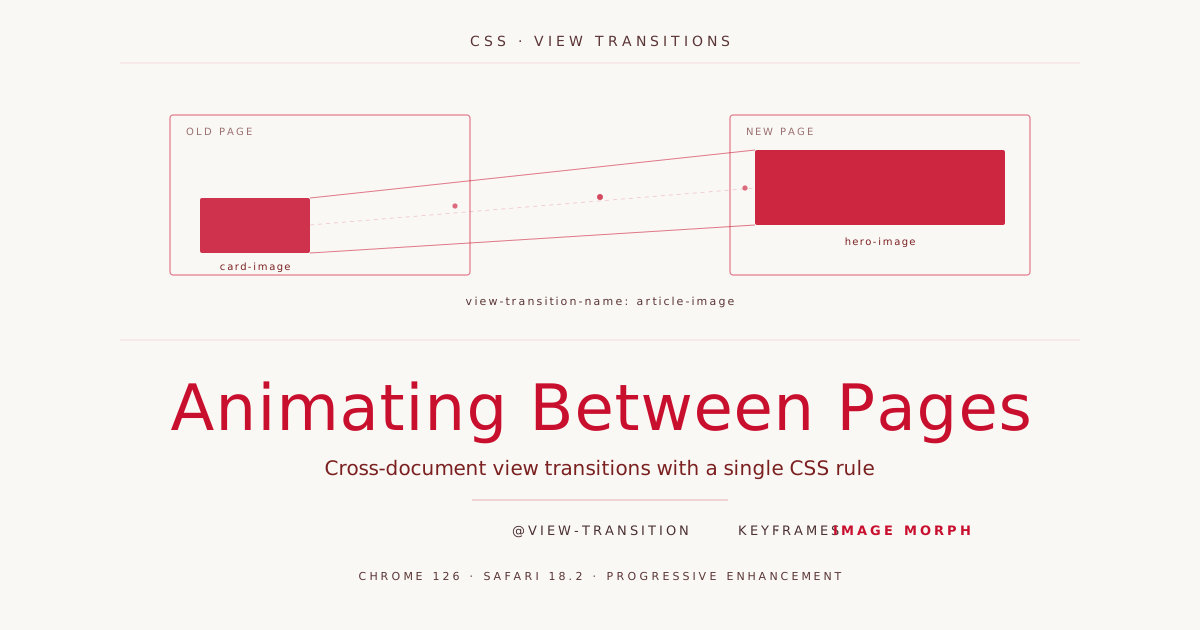
The most impressive trick is also the simplest. An image that appears on both pages — say a thumbnail in a card that becomes the hero image on the detail page — can be morphed. The browser compares position and size before and after navigation and visually animates between the two states.
For that, both images get the same view-transition-name. Because both pages use the same stylesheet, a single shared selector does the job:
.card-image,
.hero-image {
  view-transition-name: article-image;
}
Nothing more is needed. The browser recognizes the shared element, creates its own transition group for it, and expands the card image smoothly into the article page’s header image on click. If slide animations are running in parallel, it pays to disable them for this effect — too many simultaneous movements look restless.
When Safari Stutters on the Image Morph
This image morph has a quirk that shows up in practice: it visibly stutters in Safari while running smoothly in Chrome. This is known behavior, not a wiring bug. The reason lies in the mechanics of the morph. On clicking the card image, the browser scales a rasterized snapshot from the small card size up to the larger hero size, while also blending. Chrome does this scaling GPU-accelerated. Safari’s view-transition engine does more of the work on the main thread and stutters in the process — especially when the old and new representation have different display sizes or aspect ratios. A plain crossfade between two pages without an image, by contrast, is usually unremarkable in Safari. It is specifically the image morph that stutters.
Two adjustments reduce the jank noticeably without making Chrome worse. The first unifies the geometry of the snapshots. With full size and object-fit: cover on both pseudo-elements, Safari animates pure geometry instead of a distorting aspect-ratio blend:
::view-transition-old(article-image),
::view-transition-new(article-image) {
  height: 100%;
  width: 100%;
  object-fit: cover;
}
The second shortens the duration of the morph. A shorter animation leaves less time for the stutter to become visible:
::view-transition-group(article-image) {
  animation-duration: 0.3s;
}
If you need something harder, you can disable the image morph specifically in Safari and fall back to the clean crossfade there, which does not stutter. But that means browser sniffing and is more of a last step than a first one. The two CSS tweaks are the more honest solution: they cost nothing in Chrome and ease the problem in Safari without introducing a browser switch.
Three Things That Bite in Practice
Before the feature moves into a real project, the pitfalls are worth a look.
Names have to be unique. A view-transition-name may only appear once on the current page. With a single card in a demo, that works fine. As soon as an overview shows several cards, every thumbnail needs its own unique name — otherwise the browser does not know which element to morph.
Respect reduced motion. Not everyone wants animated transitions. Anyone who has enabled reduced motion on their device should get it. The entire transition setup therefore belongs inside a media query:
@media (prefers-reduced-motion: no-preference) {
  @view-transition {
    navigation: auto;
  }
  /* ... all further transition rules ... */
}
The animations only kick in when the user has not asked for reduction.
Plan for browser support. Cross-document view transitions run in Chrome and Edge from version 126, and in Safari from 18.2. Firefox still has the feature behind a flag at the time of writing. During development you can also hit glitches with some live servers or in Chrome’s dev mode — switching the test browser often helps.
The good news: all of this is designed as progressive enhancement. If a browser does not support the transition, it simply navigates normally. The hard cut is the fallback, not an error. That is exactly what makes @view-transition a feature you can ship today — without waiting for the last browser to catch up.
Sources: Cross-Document View Transitions Are Finally Cross-Browser (2026), View Transitions (cross-document) — Can I use, Cross-Document View Transitions: The Gotchas Nobody Mentions — CSS-Tricks