Self-Hosting with Docker Compose — n8n, Postgres, and Caddy
Article 2 · Series: Getting Started with n8n
The prologue laid out the strategic case for n8n. Article 1 explained the architecture: editor, execution engine, task runners, the item model. This article turns that into a running instance. The goal is an n8n installation that uses Postgres from day one, gets HTTPS from Caddy, and has its volumes organized so a restart doesn’t lose data. By the end of the article, you will also have created and tested the first workflow. The code for this article is in the demo repository on Codeberg, tag v0.2: codeberg.org/rotecodefraktion/n8n-einstieg.
Why Postgres, not SQLite
n8n uses SQLite as its default database when nothing else is configured. For a first look that is acceptable. For anything that runs longer than an afternoon, it is not.
SQLite stores the entire database in a single file. Multiple concurrent writes lock each other out. With a single n8n process running workflows sequentially, that is not a problem. As soon as multiple workflows run in parallel, as soon as n8n operates in queue mode with separate workers, or as soon as the execution history grows to thousands of entries, SQLite shows its structural limit.
Migrating from SQLite to Postgres is possible, but not pleasant. n8n has no built-in migration tool. You export workflows manually as JSON, set up Postgres, import everything back, and hope no credential reference breaks during migration. That step is avoided by starting with Postgres from the beginning.
Postgres is also a prerequisite for queue mode. In Article 8, n8n will run with separate worker processes and Redis. The Compose setup of this article lays that groundwork without requiring any restructuring later.
Docker Compose Setup
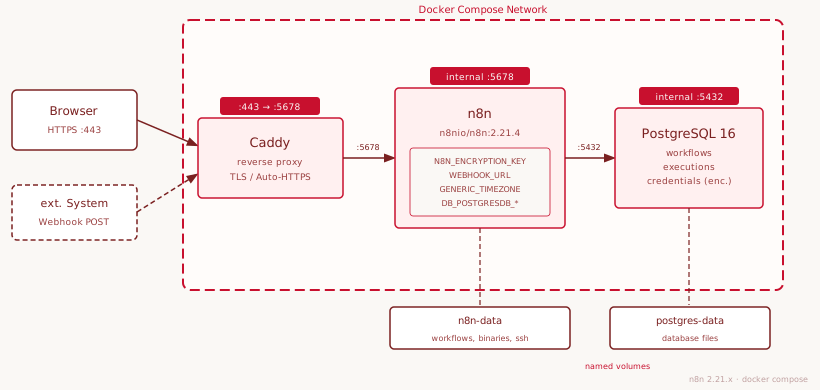
The full file is in the repository under docker/docker-compose.yml. Here is the annotated structure:
services:
  postgres:
    image: postgres:16
    restart: unless-stopped
    environment:
      POSTGRES_DB: ${POSTGRES_DB}
      POSTGRES_USER: ${POSTGRES_USER}
      POSTGRES_PASSWORD: ${POSTGRES_PASSWORD}
    volumes:
      - postgres-data:/var/lib/postgresql/data
      - ./postgres-init:/docker-entrypoint-initdb.d
    healthcheck:
      test: ["CMD-SHELL", "pg_isready -U ${POSTGRES_USER} -d ${POSTGRES_DB}"]
      interval: 10s
      timeout: 5s
      retries: 5

  n8n:
    image: n8nio/n8n:2.21.4
    restart: unless-stopped
    depends_on:
      postgres:
        condition: service_healthy
    environment:
      DB_TYPE: postgresdb
      DB_POSTGRESDB_HOST: postgres
      DB_POSTGRESDB_PORT: 5432
      DB_POSTGRESDB_DATABASE: ${POSTGRES_DB}
      DB_POSTGRESDB_USER: ${POSTGRES_USER}
      DB_POSTGRESDB_PASSWORD: ${POSTGRES_PASSWORD}
      N8N_ENCRYPTION_KEY: ${N8N_ENCRYPTION_KEY}
      WEBHOOK_URL: ${WEBHOOK_URL}
      GENERIC_TIMEZONE: ${GENERIC_TIMEZONE}
      N8N_DIAGNOSTICS_ENABLED: ${N8N_DIAGNOSTICS_ENABLED}
    volumes:
      - n8n-data:/home/node/.n8n
    expose:
      - "5678"

  caddy:
    image: caddy:2
    restart: unless-stopped
    depends_on:
      - n8n
    ports:
      - "80:80"
      - "443:443"
      - "443:443/udp"
    volumes:
      - ./Caddyfile:/etc/caddy/Caddyfile
      - caddy-data:/data
      - caddy-config:/config

volumes:
  postgres-data:
  n8n-data:
  caddy-data:
  caddy-config:
A few details that are not self-explanatory:
depends_on with condition: service_healthy ensures that n8n only starts once Postgres is actually ready to accept connections. The healthcheck command on the Postgres container verifies this with pg_isready. Without this condition, n8n can start against a Postgres that is still initializing and crash, which Docker Compose treats as a container failure.
n8n only uses expose: "5678", not ports. The port is reachable within the Compose network but not from outside. Caddy is the only service exposed externally, on ports 80 and 443.
n8n-data is the volume that holds the complete n8n configuration: the encryption key cache, local configuration, and session data. Workflows and credentials live in Postgres, but this volume still needs to be backed up.
Reverse Proxy with Caddy
Caddy is a web server that delivers HTTPS automatically via the ACME protocol (Let’s Encrypt or ZeroSSL) without manual certificate configuration. This means: anyone with a publicly reachable domain and ports 80 and 443 open gets a valid TLS certificate without a single certbot command.
The Caddyfile in the repository has two variants. For local development:
localhost {
    reverse_proxy n8n:5678
    tls internal
}
tls internal lets Caddy generate a self-signed certificate. Safari and Chrome do not trust this certificate by default — including for localhost.
macOS: making https://localhost work in Safari
Safari reads certificate trust from the macOS Keychain. Caddy’s self-signed certificate is not registered there, which is why the security warning appears — or https://localhost simply fails to load.
The clean fix: add Caddy’s local CA to the system keychain once. The CA certificate lives in the caddy-data volume and can be copied directly from the running container:
# Copy certificate from container
docker compose cp caddy:/data/caddy/pki/authorities/local/root.crt ./caddy-local-ca.crt

# Mark as trusted in macOS Keychain
sudo security add-trusted-cert -d -r trustRoot \\
  -k /Library/Keychains/System.keychain ./caddy-local-ca.crt
Restart Safari — https://localhost works without warnings.
Important: The certificate is tied to the caddy-data volume. As long as the volume exists, everything stays functional. If the volume is deleted (docker compose down -v), Caddy generates a new CA and the step needs to be repeated once. The temporary file caddy-local-ca.crt can be deleted afterwards.
Anyone who wants to skip this step can access http://127.0.0.1:5678 directly in local operation — port 5678 is internally exposed in the Compose setup. For the n8n UI in the browser this is sufficient; HTTPS only becomes relevant for external webhook receivers.
For production use on your own domain:
yourdomain.com {
    reverse_proxy n8n:5678
}
No tls block needed. Caddy fetches the certificate automatically. The only requirement: the domain points to the server’s IP via an A record, and port 80 is reachable so ACME can complete the domain ownership challenge.
Caddy manages the certificate lifecycle automatically. Let’s Encrypt certificates expire after 90 days; Caddy renews them in the background before that happens.
Environment Variables That Matter
The .env.example file in the repository lists all relevant variables. The three where mistakes are costly:
N8N_ENCRYPTION_KEY. n8n encrypts all stored credentials with this key. Credentials are everything a user creates under “Credentials” in n8n: API keys, OAuth tokens, database passwords. If the encryption key changes on restart or is absent, all stored credentials become unreadable. n8n will start, but every workflow that accesses credentials will fail. The key must be generated once, stored securely, and never checked into the repository. Recommended: at least 32 random bytes, base64-encoded. A suitable command:
openssl rand -base64 32
WEBHOOK_URL. n8n displays a webhook URL in the UI when a webhook trigger is created. Without correct configuration, n8n shows the container’s IP address or localhost. That is not reachable by external services. For purely local operation, http://localhost:5678 or the Caddy domain is fine. As soon as external services need to deliver webhooks (GitHub Actions, Stripe, a support system), the public URL must be set. For testing without a public IP, an ngrok tunnel or a Cloudflare tunnel is the simplest solution.
Setting up an ngrok tunnel
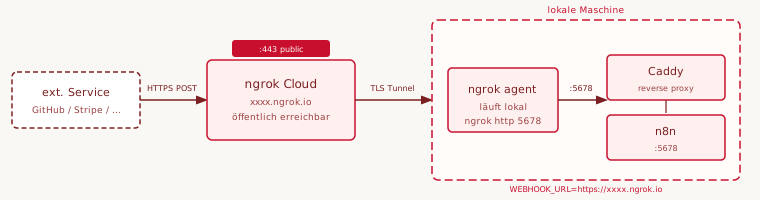
ngrok forwards a public HTTPS endpoint to a local port — no domain, no router port forwarding needed. Useful when an external service (GitHub, Stripe, a support system) needs to actively push webhooks to the local instance.
Free plan limitation: With a free ngrok account, the assigned URL changes every time you restart ngrok http. That means: after every restart, WEBHOOK_URL in .env needs updating, n8n needs restarting, and the external service needs the new URL. Acceptable for short test sessions, impractical for ongoing local development. For a stable URL, use a paid ngrok plan or Cloudflare Tunnel (free, stable URL).
For purely local testing with curl or Postman, ngrok is not needed — http://127.0.0.1:5678 is sufficient.
ngrok forwards a public HTTPS endpoint to a local port — no domain required, no router port forwarding. Incoming webhook requests from external services (GitHub, Stripe, support systems) arrive at ngrok.io and reach the local n8n through an encrypted tunnel.
Installation:
# macOS
brew install ngrok

# or directly from ngrok.com/download
One-time setup (free account at ngrok.com required):
ngrok config add-authtoken <your-token>
Start tunnel (while Docker Compose is running):
ngrok http 5678
ngrok displays the assigned URL, for example https://a1b2c3d4.ngrok.io. Enter this URL as WEBHOOK_URL:
WEBHOOK_URL=https://a1b2c3d4.ngrok.io
Then restart n8n to pick up the new URL:
docker compose restart n8n
Note: The URL changes with every new ngrok http call (free account). Paid ngrok plans offer stable subdomains. Cloudflare Tunnel is a free alternative with a stable URL.
GENERIC_TIMEZONE. n8n has no location context internally. Schedule-based triggers and all date-related operations follow the configured timezone. Without this variable, n8n runs on UTC. That is not an error, but all schedule triggers run in UTC, which can cause problems with local timestamps in ticket data or business-hours logic.
N8N_DIAGNOSTICS_ENABLED. By default, n8n sends telemetry to n8n.io: which nodes are used, error rates, workflow sizes. Setting N8N_DIAGNOSTICS_ENABLED=false disables this. For production setups in enterprise environments, this is typically a requirement.
The database credentials (POSTGRES_DB, POSTGRES_USER, POSTGRES_PASSWORD) are straightforward. The postgres-init/01-init.sql script in the repository creates a dedicated n8n user and database on first startup and sets the necessary permissions.
Setup Script for .env
Instead of copying .env.example manually and filling in each value, the repo includes an interactive script that prompts for all parameters, generates secure values, and writes the file directly:
bash scripts/setup-env.sh
The script steps through the required fields one by one. Postgres password and encryption key are generated via openssl rand and offered as defaults — accept them or provide your own. At the end, the script displays the generated encryption key once more with an explicit reminder to store it in a password manager. The resulting .env gets chmod 600.
Anyone accepting the defaults walks away with a production-grade .env and can continue straight to docker compose up -d.
Volumes and Persistence
Four volumes are used in this setup:
| Volume | Contents | Backup Priority |
|---|---|---|
postgres-data | Workflows, execution history, credentials | High |
n8n-data | n8n configuration, key cache | Medium |
caddy-data | TLS certificates, ACME state | Low |
caddy-config | Caddy runtime configuration | Low |
Workflows and credentials live in Postgres, not in n8n-data. This means postgres-data is the critical volume. Losing it means losing all workflows and all credentials. Caddy certificates are renewed automatically; losing caddy-data only forces a new ACME request.
For production backups, a pg_dump cron job is sufficient:
docker exec postgres pg_dump -U ${POSTGRES_USER} ${POSTGRES_DB} > backup-$(date +%Y%m%d).sql
First Login, First Workflow
After docker compose up -d in the docker/ directory, n8n starts. The logs show whether the Postgres connection and encryption key loaded correctly:
docker compose logs n8n | grep -E "Database|Encryption|Starting"
n8n is reachable at the configured domain or https://localhost. The first visit shows a setup wizard: email, password, and name for the owner account. This account is the sole admin; additional users can be invited later.
After logging in: create a workflow. Click the n8n logo in the upper left, then “New Workflow”. The first workflow is a smoke test: it runs manually and verifies that n8n can make HTTP requests outbound.
Add a “Manual Trigger” node. Then connect an “HTTP Request” node. Enter https://httpbin.org/get as the URL, method GET. Click “Execute Workflow” in the upper right. The HTTP Request node should show the JSON response from httpbin, including the host IP as the sender. This confirms: n8n is running, it reaches out from the container, Postgres holds the workflow.
Smoke Test as a Script
The repository includes scripts/smoke-test.sh, which automates the same check. Useful for CI and for verification after a restart:
#!/usr/bin/env bash
set -euo pipefail

COMPOSE_DIR="$(cd "$(dirname "$0")/../docker" && pwd)"
N8N_URL="${WEBHOOK_URL:-https://localhost}"
RETRY_MAX=20
RETRY_INTERVAL=5

echo "Starting services..."
docker compose -f "$COMPOSE_DIR/docker-compose.yml" up -d

echo "Waiting for n8n to become healthy..."
for i in $(seq 1 $RETRY_MAX); do
  STATUS=$(docker compose -f "$COMPOSE_DIR/docker-compose.yml" ps --format json \
    | python3 -c "import sys,json; data=[json.loads(l) for l in sys.stdin if l.strip()]; \
      svc=[s for s in data if s.get('Service')=='n8n']; \
      print(svc[0].get('Health','unknown') if svc else 'not-found')" 2>/dev/null || echo "unknown")
  if [[ "$STATUS" == "healthy" ]]; then
    echo "n8n is healthy."
    break
  fi
  if [[ $i -eq $RETRY_MAX ]]; then
    echo "n8n did not become healthy in time." >&2
    docker compose -f "$COMPOSE_DIR/docker-compose.yml" logs n8n | tail -30 >&2
    exit 1
  fi
  echo "Waiting... ($i/$RETRY_MAX)"
  sleep "$RETRY_INTERVAL"
done

echo "Checking n8n HTTP endpoint..."
HTTP_CODE=$(curl -sk -o /dev/null -w "%{http_code}" "$N8N_URL/healthz" || echo "000")
if [[ "$HTTP_CODE" != "200" ]]; then
  echo "Expected HTTP 200 from /healthz, got $HTTP_CODE" >&2
  exit 1
fi
echo "HTTP 200 from $N8N_URL/healthz — smoke test passed."
The smoke test checks three things: containers start, n8n becomes healthy, the /healthz endpoint responds with 200. n8n has exposed /healthz without authentication since version 0.214; Caddy passes the request through. If the test completes on a fresh setup in under a minute, the setup is correct.
Article 3: Test Data, Because Real Data Is Off the Table
The setup is in place. n8n can now execute workflows, receive webhooks, and store credentials in encrypted form. What is still missing is the data the workflows will work with. In this demo project, that means support tickets: category, language, priority, free text. Real tickets from a production system do not belong in the repository; that would be a data protection issue. How to build a realistic synthetic dataset that is statistically balanced, works across multiple languages, and is reproducible is the topic of Article 3.
The state of this article in the demo repository is available under tag v0.2 on Codeberg: codeberg.org/rotecodefraktion/n8n-einstieg.